
Is Your MacBook Not Powering On? Discover Potential Issues and Solutions

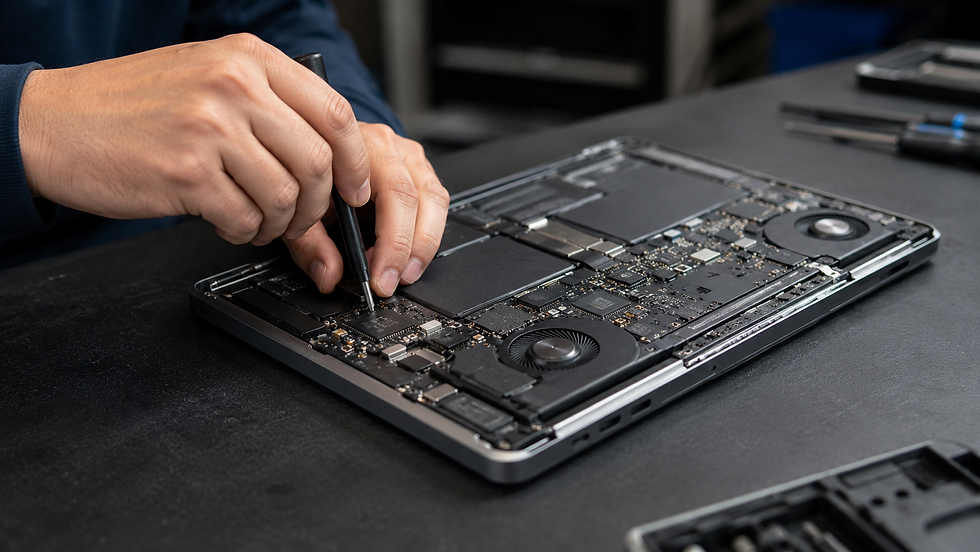
A MacBook that fails to power on can be incredibly frustrating. Whether you're getting ready for work, attending an online class, or accessing important files, pressing the power button without a response can be stressful. Fortunately, a MacBook not turning on doesn't always indicate permanent damage. Often, the issue is minor, though some cases may require professional repair. Understanding potential causes can help you prevent unnecessary panic and potentially save money on replacements.
Is Your MacBook Really Not Turning On?
Before assuming the worst, it's crucial to assess the situation accurately. Many users believe their MacBook isn't turning on when it's actually a display issue, a completely drained battery, or a system freeze. If you hear startup sounds, see keyboard backlighting, or notice the cooling fans spinning, your MacBook might be on but experiencing a display issue instead.
1. Completely Drained Battery
A common reason for a MacBook not powering on is a fully depleted battery. If drained for a long time, it may take several minutes to show charging signs.
Connect your MacBook to a compatible charger and let it charge for at least 20 to 30 minutes before trying to power it on. Ensure the power outlet, charging cable, and adapter are functioning properly, as a faulty charger is often mistaken for a laptop failure.
2. Faulty Charging Cable or Power Adapter
Charging accessories can wear out over time. Frayed cables, damaged connectors, or faulty power adapters can prevent your MacBook from receiving power.
Test with another compatible charger if possible. If your MacBook charges normally, the issue likely isn't with the laptop. Using high-quality charging accessories also protects your device from power-related damage.
3. Software Crash or System Freeze
Sometimes, your MacBook seems dead when the operating system has crashed.
A forced restart can often resolve this. Press and hold the power button for about 10 seconds, release it, then press it again to restart. Temporary software glitches can prevent the system from responding, especially after updates or unexpected shutdowns.
4. Display Problems
A black screen doesn't always mean your MacBook isn't on.
The display could be malfunctioning while the computer runs normally. Signs of a display issue include hearing startup sounds, feeling fan activity, or seeing the keyboard backlight illuminate while the screen stays black.
Professional diagnostics can determine if the issue involves the display assembly, cable, graphics hardware, or another internal component.
5. Battery Failure
MacBook batteries degrade over time. After years of charging cycles, the battery might fail to provide enough power to start the system.
Signs include rapid battery drain, unexpected shutdowns, charging inconsistencies, or a battery that won't hold a charge. Replacing the battery often restores normal operation without needing a new laptop.
6. Liquid Damage
Even a small spill of coffee, water, or other liquids can damage sensitive internal components.
Liquid exposure often causes corrosion that worsens over time. Your MacBook might initially function normally before suddenly refusing to power on days or weeks later.
If you suspect liquid damage, avoid trying to turn the device on repeatedly. Continued power can increase damage and reduce repair success chances.
7. Logic Board or Internal Hardware Failure
If your MacBook has been dropped, exposed to moisture, or experienced a power surge, the logic board or other internal components might be damaged.
Possible hardware failures include:
Logic board damage
Power management circuit failure
SSD issues
Keyboard or power button malfunction
Internal connector damage
Charging circuit failure
These repairs require advanced diagnostic equipment and should be handled by experienced technicians.
8. Corrupted macOS or Startup Problems
Sometimes, the hardware is fine, but macOS fails to boot due to software corruption.
Startup failures may occur after interrupted updates, failed installations, storage errors, or corrupted system files. Depending on the issue's severity, recovery tools or OS reinstallation may restore functionality without hardware replacement.
What to Try Before Seeking Repair
If your MacBook won't turn on, try these troubleshooting steps:
Connect a verified working charger.
Charge the battery for at least 30 minutes.
Force restart the MacBook.
Check the display brightness.
Disconnect external devices.
Listen for startup sounds or fan activity.
Test another charging cable and power adapter.
If none of these steps restore power, professional diagnostics are the safest next step.
When to Visit a Professional Repair Shop
Seek professional repair if:
Your MacBook shows no signs of power.
The charger is confirmed to be working.
The battery won't charge.
The laptop was dropped.
Liquid exposure occurred.
The MacBook repeatedly shuts off.
The screen remains black while internal components appear active.
You notice unusual heat, burning smells, or clicking sounds.
Professional technicians can quickly identify whether the issue involves the battery, charging system, display, storage, or motherboard, helping you avoid unnecessary replacements.
Can a MacBook That Won't Turn On Be Fixed?
In many cases, yes. Most power-related issues can be repaired without replacing the entire laptop. Common repairs include battery replacement, charging port repair, display replacement, SSD replacement, logic board repair, power circuit repair, and software recovery. Early diagnosis often reduces repair costs and increases the chances of recovering important files stored on your device.
How to Prevent Future MacBook Power Problems
Proper care can significantly extend your MacBook's life. Keep liquids away, use quality charging accessories, avoid extreme temperatures, install software updates regularly, clean dust from ventilation areas, back up important files frequently, and avoid letting the battery remain completely discharged for long periods. Preventive maintenance helps reduce unexpected failures and keeps your MacBook performing reliably.
Final Thoughts
A MacBook that won't turn on doesn't automatically mean it's time to buy a new laptop. The issue could be as simple as a faulty charger or depleted battery, or it may involve more advanced hardware that can still be professionally repaired. The key is identifying the root cause before making an expensive replacement decision. If your MacBook refuses to power on despite basic troubleshooting, professional diagnostics can quickly determine the problem and recommend the most cost-effective repair solution. Acting early not only saves money but also increases the likelihood of protecting your valuable data and extending the life of your MacBook.


Comments